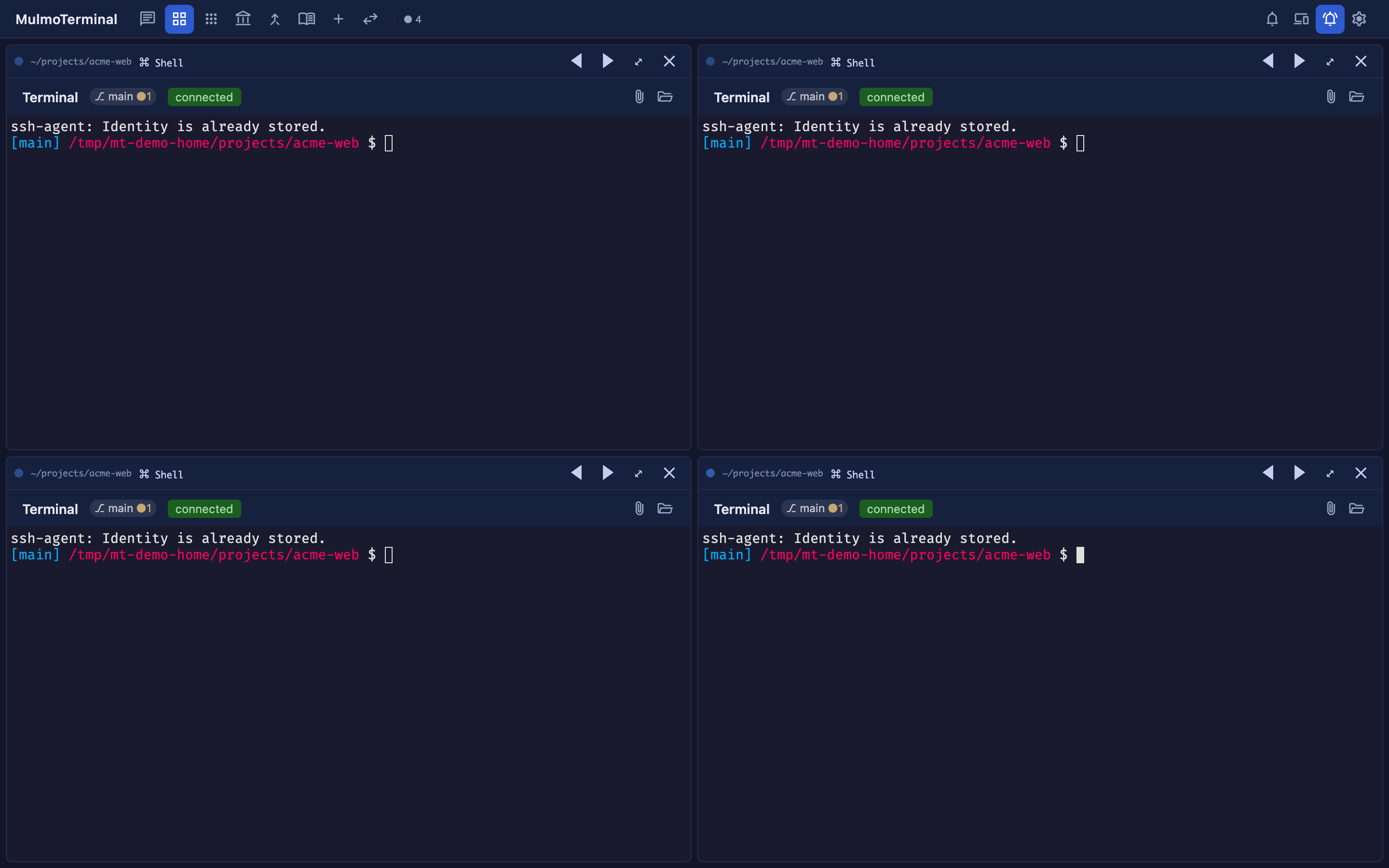
MulmoTerminal’s four pillars — Supervise / See / Automate & investigate / Extend — shown as real development workflows. Parallel agents, git worktrees, Claude and Codex side by side: the vocabulary is in the glossary.
The grid’s core and headline use case. This is the center of the command post.
Each cell’s header shows what that session is doing right now, so you can tell which cell is working on what at a glance.
You also hear when it’s done. When a session needs you, a notification sound plays — so you notice even without watching the screen. Point it at your own audio file in Configuration — one developer rings a gong (“goooong”) on every completion.
When you want to try something without polluting main, isolate the work in a git worktree.
fix-login) under OR ISOLATE IN A WORKTREE.Two agents in one repository then never tread on each other’s files.
→ Isolating work in a git worktree has the whole run: the branch name and what it forks from, the one-session-per-worktree rule, cleaning up as you close, and how project settings are inherited.
You can point each cell at a different working directory. Open your frontend repo and your API repo in adjacent cells and change one to match the other — cross-repo work that completes on a single screen. Register the directories you use often as cwd presets in Configuration so autocomplete kicks in.
Grid cells aren’t just for Claude — they can run your project’s scripts, say yarn dev (dev server), yarn test,
yarn build, or yarn lint.
Define scripts in that directory’s script.json, then pick one from an empty cell’s launcher (or the Run menu).
{ "scripts": [
  { "label": "dev",  "command": "yarn dev" },
  { "label": "test", "command": "yarn test" },
  { "label": "lint", "command": "yarn lint" }
] }
Another way, as of 0.8.0: a
run:"shell"button in.mulmoterminal.json(e.g.{ "run": "shell", "cmd": "yarn build" }) runs the same command as a command cell from a one-click header button. See Configuration → Customizing the header.
claude -p and returns a short summary of the errors / warnings / cause / how to fix.
Use Copy as prompt to copy “command + directory + summary + follow-up” and paste it into any session to continue.You can send the same task to both Claude and Codex to compare, or use each for what it does best — all on a per-cell basis. Just pick one with the toggle at launch; collection actions and mulmoclaude skills work with both.
As you add cells, it gets harder to tell which one is which project. Set a name badge and header / body / border /
dot / button colors in each repo’s .mulmoterminal.json so you can distinguish them at a glance in the grid (see
Configuration).
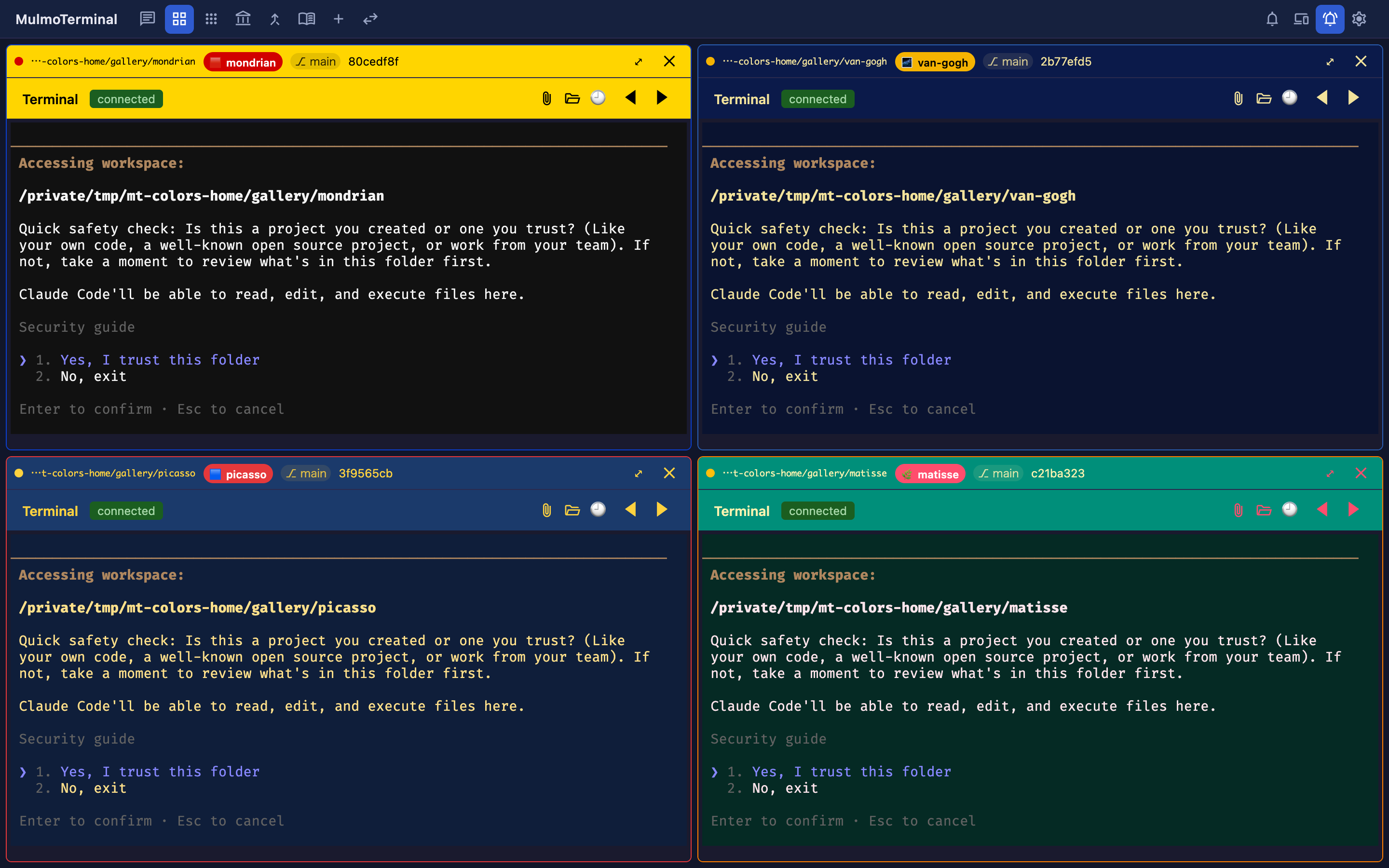
Here: Mondrian (yellow + red), Van Gogh (night blue + yellow), Picasso (blue + red + yellow), Matisse (green + pink).
Not just the header and badge — colors tints the terminal itself (background + text) too, so you can’t mix them up.
{
  "name": "van-gogh",
  "badgeColor": "#f5b301",
  "headerColor": "#0b1a4a",
  "headerTextColor": "#f2e29b",
  "colors": { "background": "#0a1330", "foreground": "#f2e29b", "cursor": "#f5b301" }
}
Using buttons / chips in .mulmoterminal.json, you can add your own buttons (e.g. send /compact, open GitHub,
run a build) and display chips to the header of a running terminal.
→ Customizing the header walks it through from the first button, with screenshots.
Next: Feature reference