Using what 2.0.0 added
As of 2026-07-26. This page is a snapshot taken at release, written so that someone who wants a feature now can get it working. For anything that changes later, follow the links to the living guide in each section.
- Keyboard shortcuts
- Web Push, per kind
- What the phone can do now
- Clicking a file path opens it as what it is (1.11.0)
- Also in this release
Keyboard shortcuts
Drive the grid without the mouse. Nothing is bound by default — every key you bind is one the program inside the terminal (Claude Code, vim, less) stops receiving, so that trade is yours to make.
1. Open the config file
~/.mulmoterminal/config.json. Create it if it isn’t there.
2. Add a keymap
Start with these two:
{
  "keymap": {
    "zoom-toggle": "F8",
    "next-attention": "F9"
  }
}
If the file already has settings, add keymap at the top level and leave the rest alone.
3. Apply it
Restart the server and reload the browser tab. Both: the browser reads the config when the page loads.
4. Check it took
⚙ Settings → Keyboard shortcuts lists every action with its binding. Seeing F8 / F9 there means the config was read.
Try it
With two or more terminals running:
| Key | What it does |
|---|---|
F8 | Enlarge the terminal the cursor is in. Press again to collapse |
F9 | Move to the next terminal worth looking at — awaiting input, then finished-and-unreviewed, then idle, skipping anything mid-turn |
F9 never changes whether you are zoomed. Zoomed it moves the enlargement; in the grid it moves the keyboard focus (the focused cell lifts slightly). Only F8 enlarges and collapses.
Everything you can bind
| Action | What it does |
|---|---|
zoom-toggle | Enlarge / collapse |
zoom-next / zoom-prev | Walk the enlargement along the on-screen order |
next-attention | Move to the next terminal worth looking at |
terminal-new | Add a terminal at the end |
terminal-new-adjacent | Add one next to the current terminal, inheriting its directory |
terminal-close | Close the current terminal |
⚠️ On a Mac
F1–F12 do not reach the browser by default. macOS treats the top row as media keys, so pressing F8 just changes the volume or brightness. Either:
- Hold
Fnwhile pressingF8(the binding stays"F8"—Fnis not a modifier the browser reports), or - Turn on System Settings → Keyboard → Keyboard Shortcuts → Function Keys → “Use F1, F2, etc. keys as standard function keys”.
Option+letter does not work. macOS types an alternate character with Option held, so a binding like "Alt+n" never matches. Pair Option with arrow keys instead.
A set that works on a Mac without changing any system setting:
{
  "keymap": {
    "zoom-toggle": "Alt+ArrowUp",
    "next-attention": "Alt+ArrowDown",
    "zoom-next": "Alt+ArrowRight",
    "zoom-prev": "Alt+ArrowLeft"
  }
}
⚠️ Keys you cannot bind
Cmd/Ctrl+W, Cmd/Ctrl+T and Cmd/Ctrl+N are reserved by the browser — binding one simply does nothing. So a close shortcut cannot be Cmd+W; use something like Cmd+Shift+W.
If you mistype a binding
The server refuses to start, naming the line:
[config] /Users/you/.mulmoterminal/config.json: invalid keymap — refusing to start
  keymap.zoom-next: "Hyper+PageDown" — unparseable key binding
That is deliberate: a silently ignored typo is indistinguishable from a shortcut that just doesn’t work. Fix or remove the line and it starts.
→ Full syntax, five ready-made keymaps, and the combinations that can never be bound: Configuration → Keyboard shortcuts
Web Push, per kind
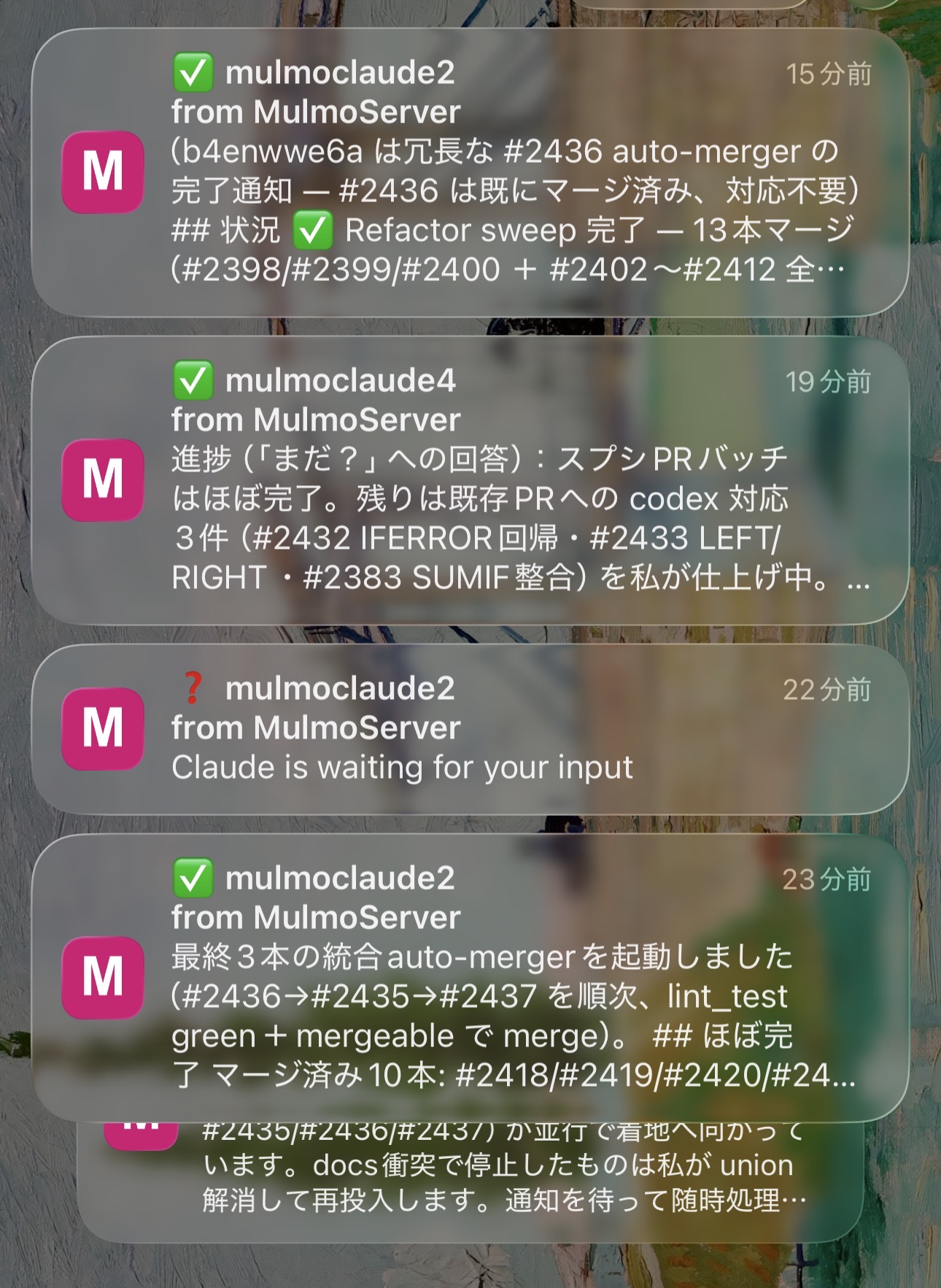
Push fired for both finished turns and permission prompts, with one global on/off as the only control — so “tell me when it’s done” also meant a notification on every permission request. Now you choose.
How to set it
⚙ Settings → WEB PUSH NOTIFICATIONS, and tick the moments you want. No file editing.
Nothing changes for you if you already use Push: an unset value means both kinds, so upgrading loses no notifications.
→ A table of which setting fires when: Mobile notifications
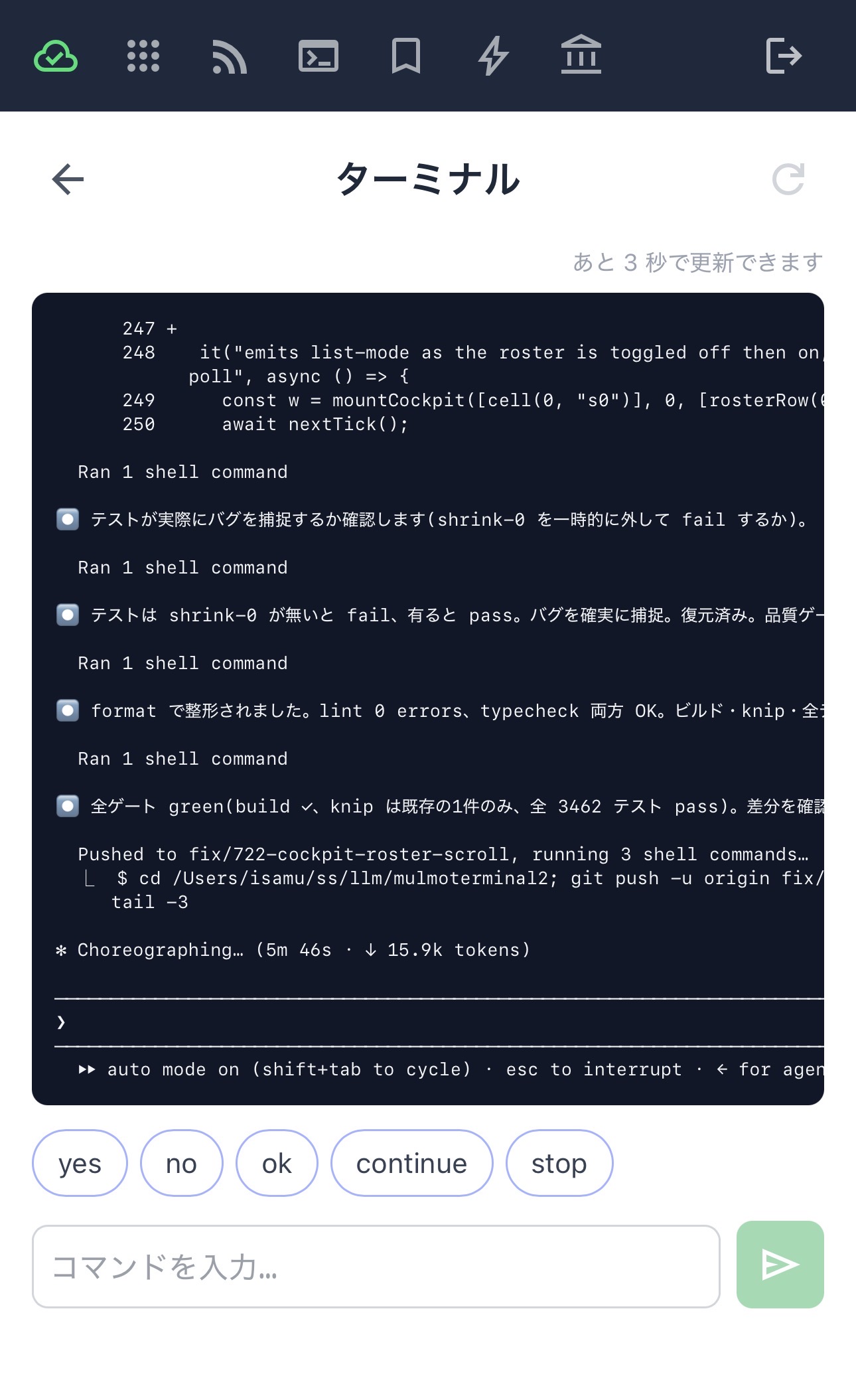
What the phone can do now
Launch a terminal in the session’s directory
From the phone’s remote view you can start a new terminal in the working directory of the session you are looking at. You pick from the host’s configured launchers, so no arbitrary command is ever run.
Quick-reply chips you define
Register the phrases you type often and tap to drop them into the input box. They live in the host’s config, so every device sees the same chips.
A link to GitHub
When the session’s directory is a GitHub repository, the screen links out to it.
→ Everything the phone can do: Using MulmoTerminal from your phone
Clicking a file path opens it as what it is (1.11.0)
Click a file path an agent printed in the terminal and it now opens according to its extension. Nothing to configure.
| Kind | Opens as |
|---|---|
.md | Rendered |
.json | Indented |
.csv / .tsv | A table with a sticky header |
Source, .txt | The in-app Files view — editable, highlighted |
| Images / PDF / video | As-is |
Files within the session’s working directory.
Also in this release
- A terminal that went white after a resize recovers in place, instead of asking for a page reload (xterm 6.0.0 buffer corruption).
- Clickable elements inside a TUI (Claude’s “Jump to bottom” and friends) respond again.
npx mulmoterminal@latestreads the.envin the directory you ran it from — if you keep an API key there, it now reaches the server (1.10.0).- Windows got a lot better (1.9.2 / 1.10.0 / 1.11.1): sessions start on an
npm i -gClaude Code, and the--settingsJSON arrives intact.
Details of earlier releases are in the changelog.