Mobile notifications (Web Push)
- 1. Terminal side (mulmoterminal)
- 2. Phone side (mulmoserver PWA)
- Not just notifications: watch and reply from the phone
- When a push is sent
- If nothing arrives
When a task finishes — or stops on a permission prompt or question — your phone gets a push notification. Kick off a long task, walk away, and get pulled back when you’re needed. Setup is in two places: the terminal side and the phone side.
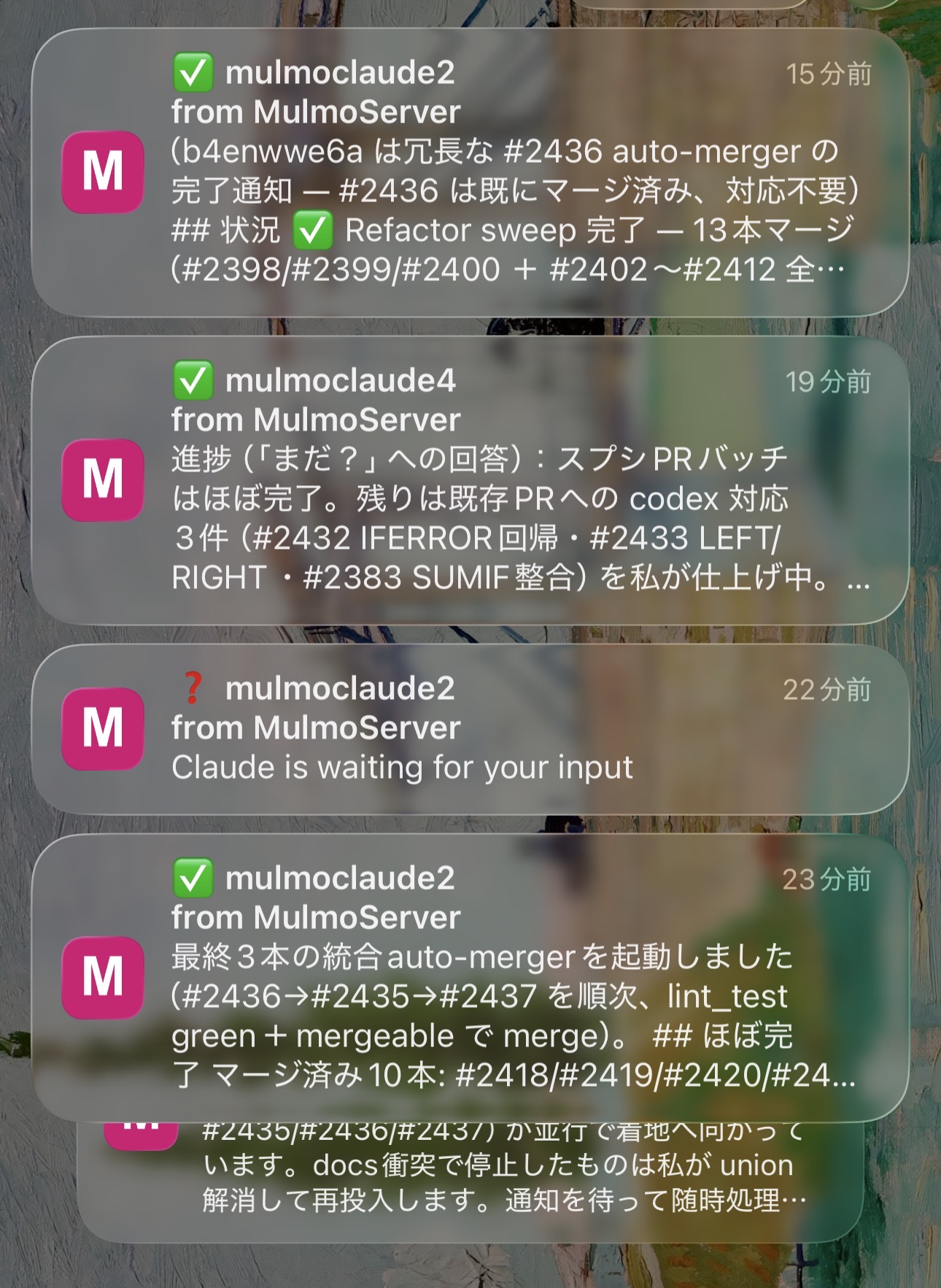
- There are two kinds of push: a turn finishing, and a turn blocking on input (permission prompt / question).
- Pushes fire even for the pane you’re viewing (unlike the attention sound, which stays quiet for the active pane — a push assumes your phone is elsewhere). Only internal background workers are excluded.
- The send happens on the server; device registration/delivery is handled by a separate service (
mulmoserver). Pushes are sent only while RemoteHost is connected.
1. Terminal side (mulmoterminal)
- Open the 📱 RemoteHost control in the toolbar (
phonelinkicon) and click Connect (Google sign-in). A Google sign-in popup opens — sign in with the same Google account you’ll use on the phone. - In Settings (⚙) → Web Push notifications, turn on “Notify my devices when a task finishes” (off by default).
⚠️ This is not the Google account section in Settings (⚙) — that one links a Calendar account for tools. Notifications use the Connect button in the RemoteHost panel.
That’s it — a background task finishing now sends a push to your phone.
💡 The login survives a server restart (since 0.9.3): the session is parked in the browser and the client silently reconnects — on page load, socket reconnect, tab wake, or network recovery.
2. Phone side (mulmoserver PWA)
The entry point is the same on every phone: https://mulmoserver.web.app (or scan the QR code shown in the RemoteHost panel with your phone’s camera). Sign in with the same Google account as the terminal — but the steps differ between iPhone and Android.
iPhone / iPad (iOS 16.4+)
On iOS, Web Push only works from a PWA installed on the Home Screen — you can’t enable it from a regular Safari tab, so install first.
- Open https://mulmoserver.web.app in Safari.
- Tap Share → “Add to Home Screen” to install the PWA.
- Launch it from the Home Screen icon and sign in with the same Google account as the terminal.
- Tap “Enable notifications” and allow the permission prompt (this registers the device as a push target).
Android
Android (Chrome) can enable push straight from the browser tab.
- Open https://mulmoserver.web.app in Chrome.
- Sign in with the same Google account as the terminal.
- Tap “Enable notifications” and allow the permission prompt.
- (Recommended) Use the menu’s “Add to Home Screen” to install the PWA — launching and delivery are more reliable that way.
Not just notifications: watch and reply from the phone
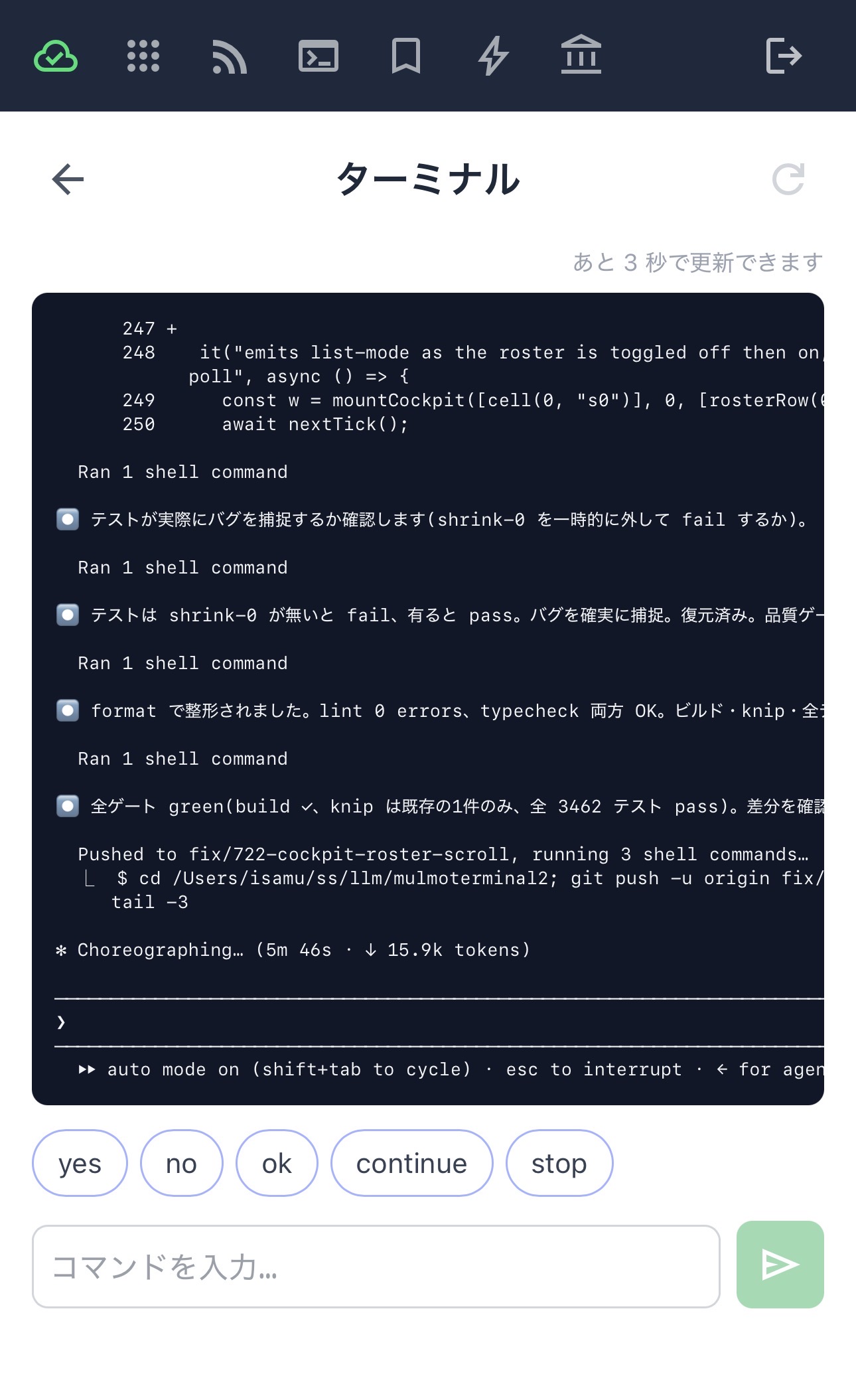
The mulmoserver PWA is a remote control, not just an inbox. From your phone you can browse the host’s sessions, watch a session’s live screen, and answer on the spot — type a command or tap a quick reply (yes / no / ok / continue / stop). Get pinged, glance at the screen, send one word, and the agent keeps going — all without a laptop.
When a push is sent
- ✅ RemoteHost is connected on the terminal side
- ✅ the “Notify my devices…” toggle is ON
- ✅ at least one device has notifications enabled on the phone side
- ✅ a regular session’s turn finished or blocked on input (the pane you’re viewing counts too; internal workers don’t)
If nothing arrives
- Is RemoteHost disconnected? → Connect again.
- Notifications not enabled / no device registered on the phone. → enable them in the PWA.
- Can’t enable on iPhone? → launch from the Home Screen icon, not a Safari tab (an iOS restriction).
- Blocked the permission prompt? → flip it back to “Allow” in the browser’s site settings (the icon left of the address bar → Notifications).
- Different Google accounts on the terminal and the phone? → sign in to both with the same account.
- Getting the same push twice? Your phone may have a stale registration — re-registering on the mulmoserver side clears it.