What changed in 2.8.0
Written on 2026-07-30, as a snapshot of that day. Behaviour moves; this page does not. For the reference that is kept current, follow the links out of each section.
- If you only read one thing
- Open a plain shell in an empty cell
- Run Antigravity next to Claude and Codex
- Paste a screenshot into the terminal
- Settings starts the skill that writes the setting
- Launcher chips: one fixed order, and you can see which is running
- Tool Call History fills up for Codex and Antigravity
- A terminal blank on its right and bottom, that a reload did not fix
- Everything else
- Links
If you only read one thing
Upgrade. Everything new here is on by default. Two things are worth five minutes of setup: ranking your directories, and — if you use it — installing Antigravity.
npx mulmoterminal@latest
| What you get | Where |
|---|---|
| A plain shell in an empty cell — nothing to install, nothing to configure | Grid, empty cell |
Antigravity (agy) as a third agent, GUI panel included | Everywhere you pick an agent |
| Paste a screenshot and get its path — in Chrome too | Any terminal |
| A button in Settings that starts the skill which writes that setting | Settings |
| Launcher chips that stay in one order, so you can aim at one | Launcher |
| Tool Call History that fills up for Codex and Antigravity | Tools pane |
| What was broken, and is fixed | Where |
|---|---|
| A terminal blank down its right side and along the bottom, that a reload did not fix | Any terminal |
| A running launcher chip was invisible once directories had colours | Launcher |
/api/remote-host/status and /api/google/status returned 403 from the LAN | Remote access |
| Your session note was missing from the cockpit roster, and from the phone’s session screen | Roster, phone |
Open a plain shell in an empty cell
An empty cell’s launch row now has four choices: Claude / Codex / Antigravity / Shell.
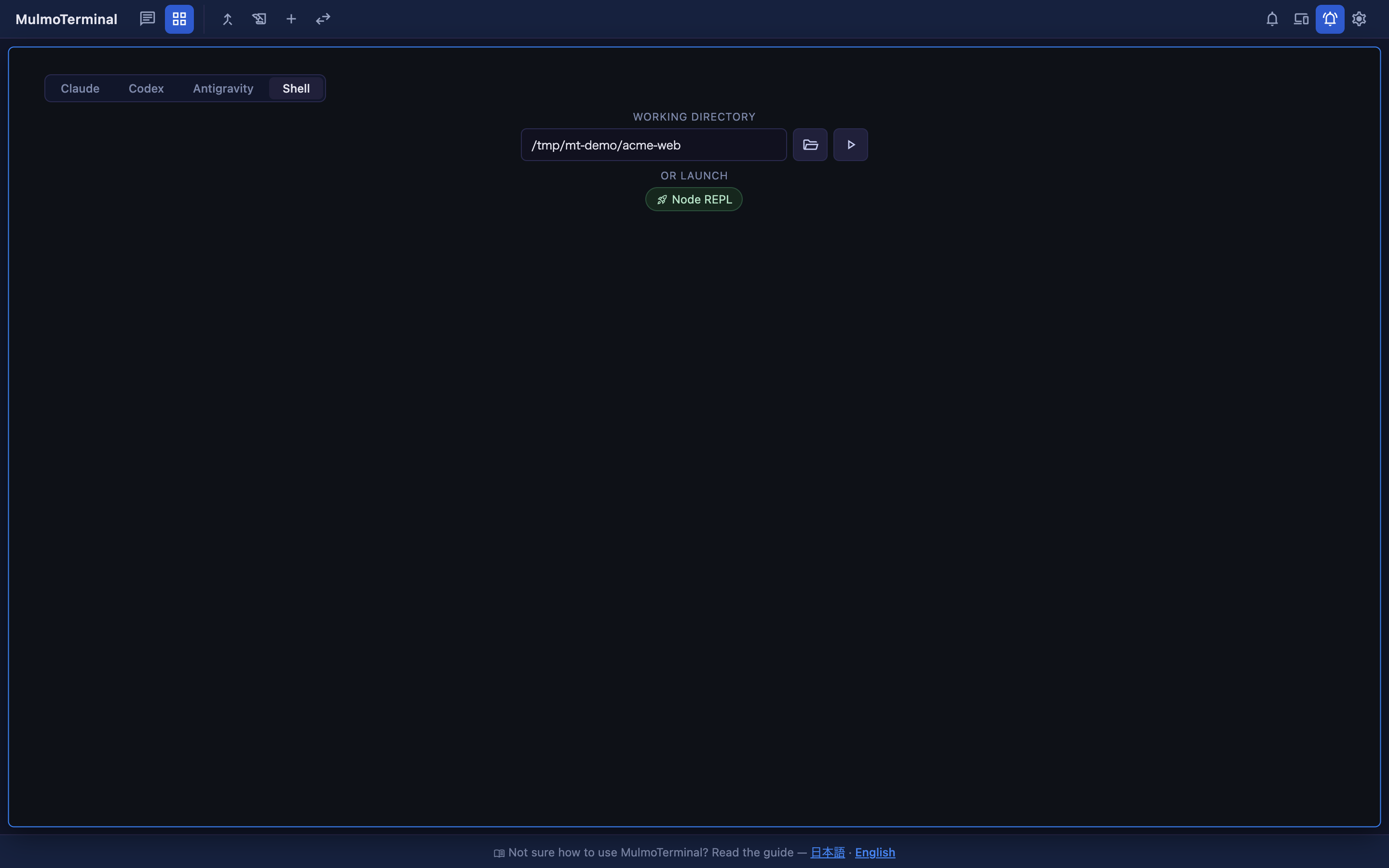
How to use it
- In an empty cell, press Shell in the top row.
- Type a working directory (your presets autocomplete).
- Press the ▶ button.
You get your OS default shell ($SHELL, or /bin/sh if that is unset) in that directory. There is nothing to configure — no launcher entry, no install, no model.
The model picker, the MCP toggles and OR ISOLATE IN A WORKTREE disappear while Shell is selected, because a shell has none of them. OR LAUNCH and OR RESUME HERE stay, since they are separate actions.
A shell could always be opened by keyboard shortcut, from a running cell’s header (New terminal here), and from the phone. The one screen it could not be opened from was the empty cell — which is the first screen you see on a fresh install.
Reference: Basics
Run Antigravity next to Claude and Codex
Antigravity (agy) is now a first-class agent, with everything Claude and Codex have: resume across a reload, the GUI panel, and a place in every picker — the launch row above, the single view, the sidebar and tab bar, and the Collections browser.
How to use it
- Install Antigravity’s own CLI so that
agyis on yourPATH. - Pick Antigravity wherever you pick an agent, and launch as usual.
Nothing else. If your binary has another name or you want a fixed model:
| Variable | Default | What it does |
|---|---|---|
ANTIGRAVITY_BIN | agy | The binary to spawn |
ANTIGRAVITY_MODEL | agy’s own default | Passed as --model |
ANTIGRAVITY_HOME | ~/.gemini/antigravity-cli | Where agy keeps its conversation storage |
The GUI panel, and the one thing that is different
The Canvas switches work as they do for Claude — flip render, data, or whichever group you want, and agy can draw into the panel.
But the registration is per directory, not per session. agy takes no MCP flag: it reads its servers from a file, and the only project-scoped file it reads is .agents/mcp_config.json, which every session in that directory shares. So:
- MulmoTerminal writes that file from the directory’s switches, and rewrites it whenever you flip one or start an agy session.
- Servers in it that MulmoTerminal did not write are left alone, and the file is removed once no group is on.
- It is kept out of your
git statusthrough.git/info/exclude— not your.gitignore, which stays yours.
How to tell it worked: run /mcp inside the agy session. It lists mulmoterminal-render with presentDocument, presentForm, presentChart, presentHtml.
Reference: Basics · Agents in the README
Paste a screenshot into the terminal
Copy an image, click into a terminal, paste. The file is saved and its absolute path is typed in at your cursor — not sent, so you finish the sentence yourself.
How to use it
- Copy an image to the clipboard. On a Mac,
Shift+Ctrl+Cmd+4puts a screen grab straight there without writing a file. - Click the terminal and paste (
Cmd/Ctrl+V). - The path appears at the cursor, with a trailing space. Type your question around it and press Enter.
This works in every browser, including Chrome, and when you are connected from another machine — the clipboard carries the bytes, so no browser has to disclose a path.
- The image goes to the same place a dropped file goes, and the session is granted access to it in the same way. Same 110 MiB cap, same cleanup.
- Pasting text is unchanged. Copying from a web page — which puts HTML and an image on the clipboard — still pastes as text.
- Paths inserted by paste, drag-and-drop and the file button now end with a space. Two pastes in a row used to produce
path1path2.
Reference: Basics
Settings starts the skill that writes the setting
Settings shows the settings it has controls for. Everything else — a colour scheme of your own, a keymap, a per-directory sound — is written in a file, and was therefore invisible: not “configurable elsewhere” but something the app cannot do.
Five sections now carry a button that starts the skill which writes that part of the config, in a real session, in the screen you pressed from.
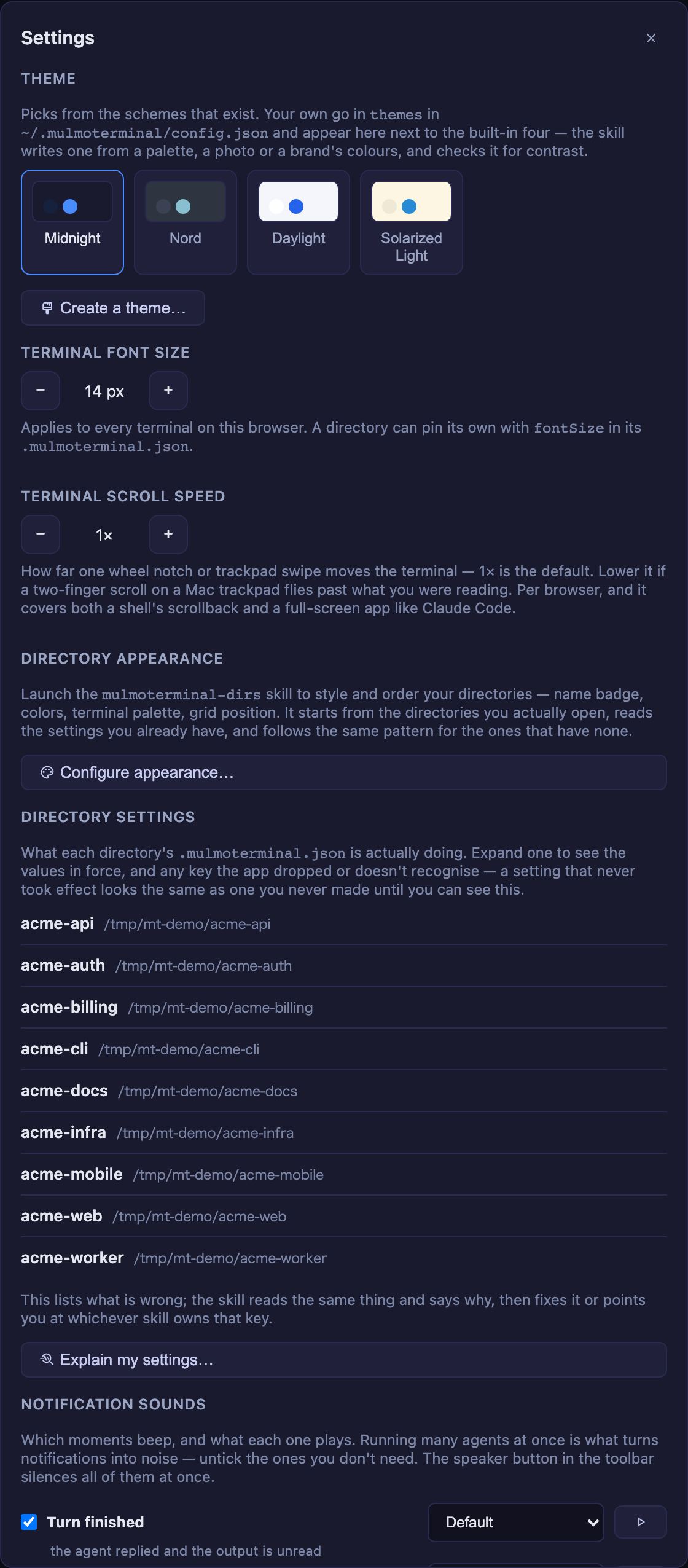
| Section | Button | What the skill does that the controls above it cannot |
|---|---|---|
| Theme | Create a theme… | The picker chooses among the themes that exist. The skill writes a new one, from a colour, a mood, or an image you point at |
| Directory appearance | Configure appearance… | Colours, name badge, font size and grid rank for a directory — reading what your other directories already do, so a new one fits in |
| Directory settings | Explain my settings… | That panel shows which keys were dropped in validation. The skill says why, and fixes them |
| Notification sounds | Configure notifications… | Per-kind and per-directory sounds, and which kinds reach your phone — none of which has a control |
| Keyboard shortcuts | Set up shortcuts… | That panel is read-only. The skill writes keymap |
Pressing one from the grid gives you a cell in the grid — it no longer throws you into the single view. (Pressing one in the single view keeps you there. The rule is: you get a session where you were.)
Reference: Settings modal · Make your own colour scheme · Keyboard shortcuts
Launcher chips: one fixed order, and you can see which is running
Two separate things were wrong with the launcher’s directory chips: they moved — the row was in “most recently launched” order, so nothing could be found by position — and once several directories had colours, the running one was no longer distinguishable, because a directory’s colour and “running” were drawn in the same channel at the same strength. A blue-ish directory looked busy while idle.
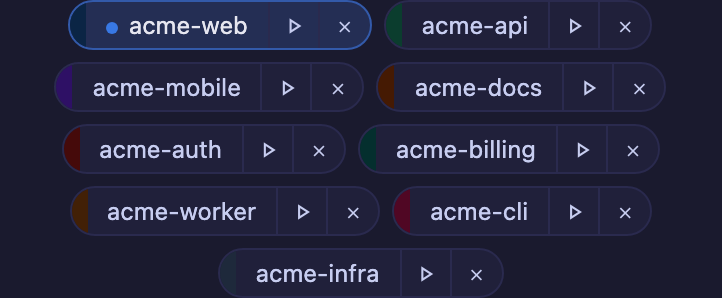
Reading a chip
- The hue on the leading stripe says which directory.
- A background, a warmer border and a slow pulse say a session is running here. An idle chip has no background, whatever colour it is. (
prefers-reduced-motiondrops the pulse; the rest still says it.)
Putting them in the order you want
The chips follow each directory’s orderPriority, ascending — the same rank the grid’s priority sort mode uses, so the side menu and the chip row finally agree.
In each project’s .mulmoterminal.json:
{
  "name": "web",
  "orderPriority": 10
}
Give the next one 20, the one after 30 — leave gaps so you can insert without renumbering. A directory that declares none keeps today’s behaviour: it sits after all the ranked ones, in the order you last launched them.
Or press Configure appearance… in Settings and let mulmoterminal-dirs rank them with you.
Reference: Where this project sits in the grid
Tool Call History fills up for Codex and Antigravity
In the tools pane, Available Tools listed what a Codex or Antigravity session could call, and the Tool Call History below it stayed empty forever — because that history had one source, the hook mechanism only claude has. Half a pane working reads as broken, not as missing.
Both now record. Open the tools pane in a codex or agy cell and its GUI tool calls appear as they happen, including a refused one — a tool outside the group you switched on — which is usually exactly what you opened the pane to find.
Read the note at the top of the list. For Codex and Antigravity this is a GUI-only history: their Bash, their file edits and their other MCP servers never pass through MulmoTerminal, so an empty list means “no GUI tool calls”, not “did nothing”. For Claude it is still the full history.
Reference: Features
A terminal blank on its right and bottom, that a reload did not fix
The report was a screenshot: text wrapping at about 77 columns inside a terminal about 136 columns wide, the whole right side and the bottom rows empty, keystrokes arriving but the layout unreadable — and a reload did not clear it.
Measured from that screenshot, this was not a redraw that got skipped. tmux’s window really was that size. Which is why nothing recovered it: reattaching sends the terminal’s size, the kernel raises SIGWINCH only when the size actually changes, and every recovery path there was could do no more than re-send the size the PTY already had. Once the window drifted out of step, there was no way back.
Now, after a resize settles, the server asks tmux what size its window is and compares it with your terminal’s. If they disagree it shrinks the pane by one row and puts it back — a real change, so a real SIGWINCH, so a real repaint. Of three candidate repairs measured against a live desync, this is the only one that worked.
How to tell you have the fix: zoom a cell, then open the file pane or drag its divider so the terminal’s width changes. The text stays inside the terminal it is drawn in. If you ever see the blank right side again, the server log now says repairing when it corrects one — that line in an issue report is worth a lot.
This is a countermeasure, not a cure: the mechanism that makes tmux drift is still not pinned down, so #957 stays open. The repair works regardless of the cause.
Related, and shipped with it: coming back to a cell from a background tab could leave the screen scrambled — text from two different moments interleaved, the bottom half empty. What a reattaching browser replays is a diff stream, not a screen, so anything drawn before that window opened was never sent. After a reattach the server now asks tmux to repaint the whole pane.
Everything else
- Reachable from the LAN again: with
MULMOTERMINAL_HOST=0.0.0.0andMULMOTERMINAL_ALLOWED_ORIGINSset,GET /api/remote-host/statusand/api/google/statusreturned 403 forever, so the remote-host and Google panels never loaded from another machine. Browsers do not sendOriginon a same-origin GET, and those two routes were the only guarded GETs. - Your session note now shows everywhere it should: in the cockpit roster of a zoomed grid, and in the header of an opened session on your phone (that half needs mulmoserver’s next release; this side is ready and harmless until then).
- The config skills are seven, not one:
mulmoterminal-configis now a router that also audits your real config, with-dirs,-theme,-header,-keys,-modeland-notifydoing the writing. Asking to change a colour no longer loads everything about every setting, and three areas that were in use but undocumented — customthemes, global headerbuttons/chips, andsoundKinds/sounds— are covered now. - Update announcements: new releases are posted in Japanese on X by Singularity Society.
- Docs: four environment variables that existed and were documented nowhere are now in Configuration, and the Windows daily CI build is green again (a test bug, not a product one).
For the full list, see the changelog.
Links
- Guide index — the living reference
- Basics · Configuration · Features
- Changelog
- Issues —
/mulmoterminal-bug-reportin any session will check your config and version first, then help you file one