MulmoTerminal Guide (English)
Run a whole team of AI coding agents (Claude Code / Codex) in parallel, on one board — MulmoTerminal is the cockpit for that. The headline features first.
✨ Highlights
🎛️ The grid — a cockpit for parallel agents
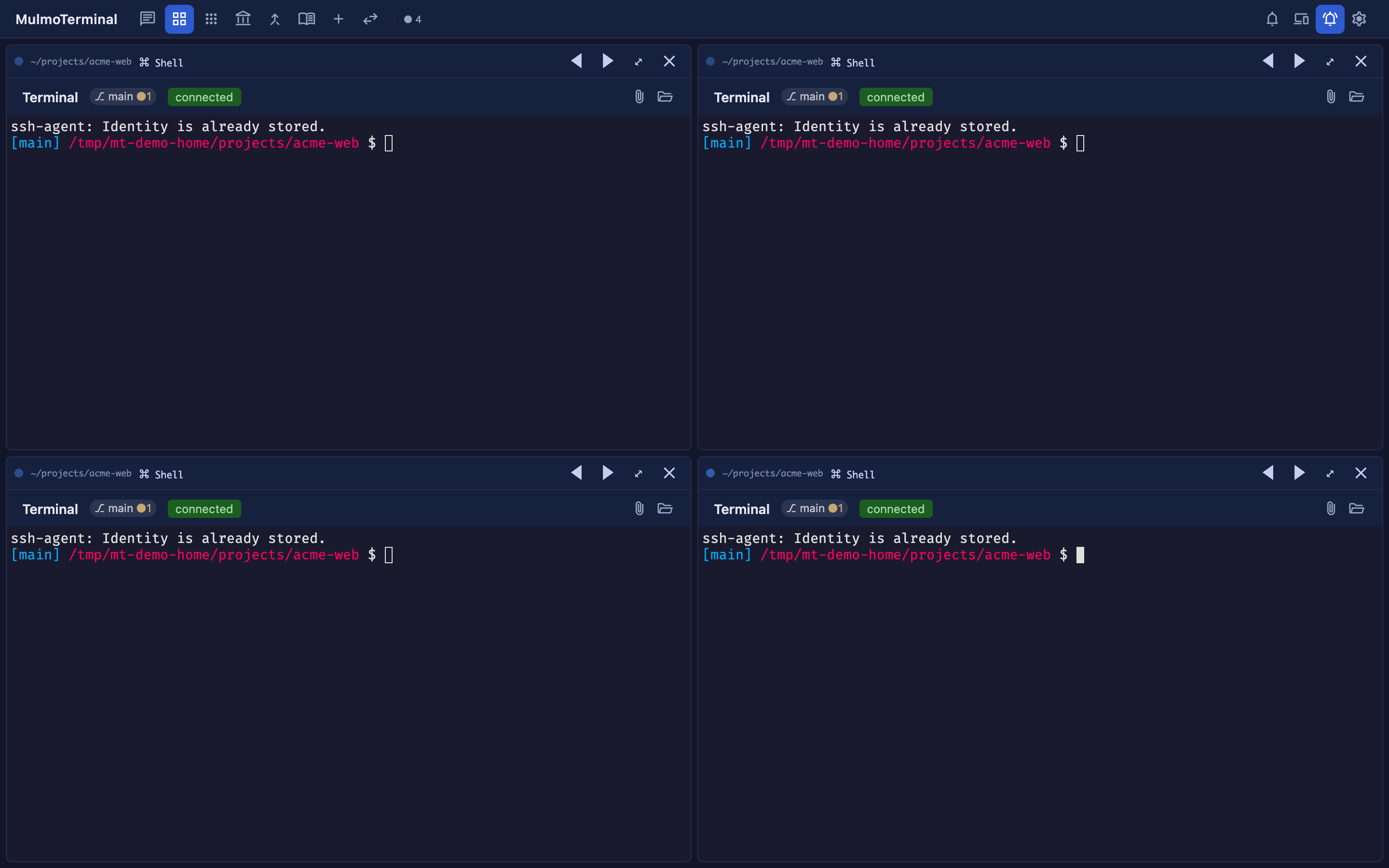
One independent agent per cell. Status colors (working = blue / awaiting input = amber / done-review = blue ring) and an attention sound mean you pick up only the cells that call you — no babysitting. → Basics
📋 The cockpit roster — everyone’s progress, one row each
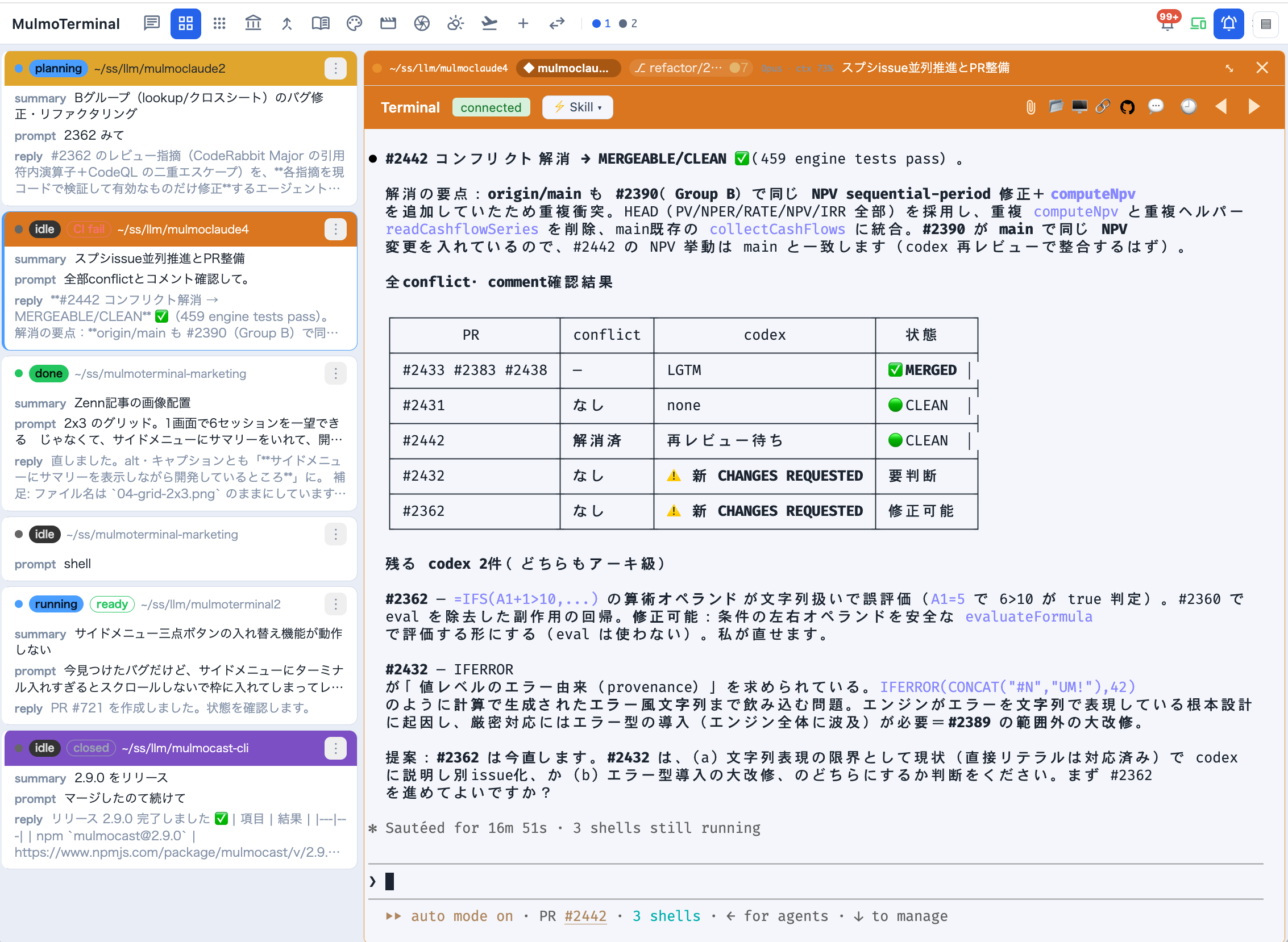
Stay zoomed into one agent while a text list tracks every session’s AI summary, last instruction, latest reply, and PR phase (draft / CI fail / ready / merged …). This is the main screen for running many agents. → Basics
📱 Phone push & remote control — walk away, get called back
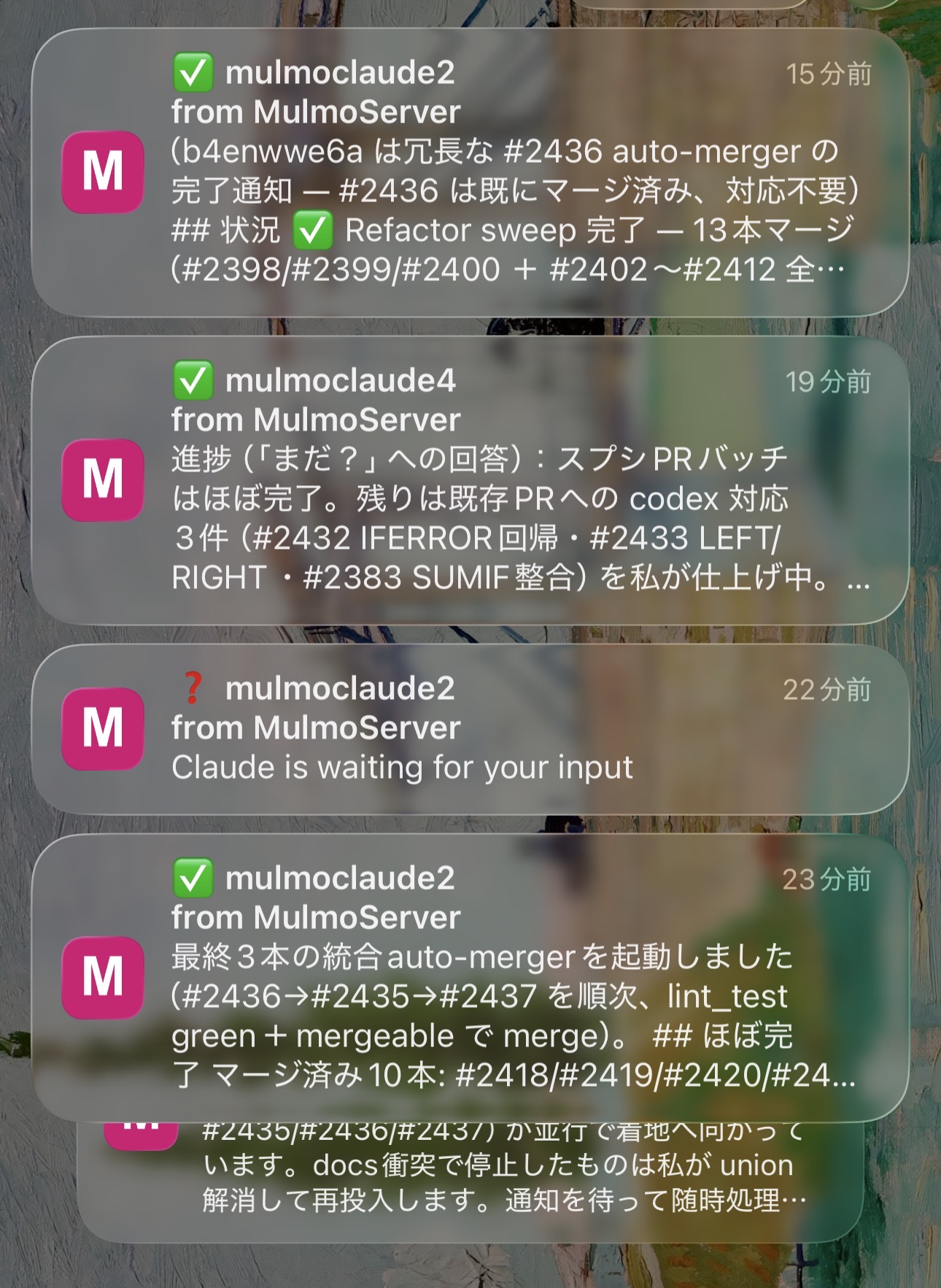
Finished and input-waiting turns send a Web Push to your phone; open the live screen there and answer with one tap (yes / no / continue). → Mobile notifications
🌿 Worktree isolation & one-click PRs
Git worktrees let several agents work the same repo without colliding — diff panel, commit, push, and ⧉ Open PR, all from the cell. → Scenarios
🖼️ The GUI panel — a screen beside the terminal
The agent’s tool calls render as diagrams, forms, images, documents, and video/slides (MulmoCast). Your agent hands you an interface, not just printed text. → Feature reference
♻️ tmux persistence — sessions don’t die
Sessions survive reloads, reconnects, and server restarts. Leave a long build running and come back.
Vibe-coding with AI agents — sound familiar?
As you run more and more terminals and AI agents (Claude Code / Codex)…
- 📊 you lose track of which one is doing what (their status)
- 📁 you can’t tell which directory each is in
- 💭 even when you know the dir, what did I even ask it? (you forget the instruction)
- 🔔 an agent finishes and you don’t notice — it waits on you, or you wait on it
- 💥 close the tab or the terminal drops, and the session is gone
- 🌿 you want to check git or open a folder, but keep typing commands for it
- ⚡ all you really wanted was to work fast with the terminal as your hub —
AI agents take minutes per task. Babysit one and your hands sit idle; add more and keeping track gets harder. The bottleneck isn’t the CPU or the terminal — it’s your attention.
Every one of these, handled
| The moment | In MulmoTerminal |
|---|---|
| Can’t tell the status of many terminals | Lay them out in a grid; status colors (working = blue / awaiting input = amber / done-review = blue ring) + a sound, at a glance (→ Basics) |
| Don’t know which directory | Each cell shows its dir, a project name badge, and colors. Color-code to tell them apart (→ Config) |
| Forget the instruction | The cell header always shows the latest instruction / what it’s doing; 🕘 shows the tool-call history (→ Feature reference) |
| Want to know it’s done | Input-waiting turns amber, a finished turn gets a blue ring, both play a sound — plus a Web Push to your phone (→ Mobile notifications) |
| Want the session to survive | tmux persistence keeps it alive across reload, reconnect, and server restart |
| Open git / a dir quickly | A git status chip; open the OS file manager (Finder/Explorer) / the in-app files / a PR in one click |
| Work with the terminal as the hub | All of the above on top of a terminal, and extend it to your workflow with a DSL (→ Config) |
The four pillars behind it
- Supervise — the grid is a cockpit for parallel agents. Triage by status color + sound; step in only where you’re needed.
- See — each agent’s status, model, context, git, tool-call timeline, and cost, at a glance. What each one is doing and where, always visible.
- Automate & investigate — run scripts in one click (in a spare cell next to a running session); when one fails, turn a wall of logs into a short AI diagnosis.
- Extend (DSL) — header buttons/chips, launchers, and per-project config via a small DSL — it fits any developer.
🚀 Get started
If the claude CLI (Claude Code) runs on your machine and you have Node ≥ 22.9, one command starts it (tmux is ideal for persistent sessions):
npx mulmoterminal@latest # opens http://localhost:34567
How to read this guide
- Basics — what you can do in the grid
- Scenarios — workflows by example
- Feature reference (grouped by the four pillars)
- Configuration (settings modal ·
config.json·.mulmoterminal.json· the DSL) - Mobile notifications (Web Push) (iPhone / Android setup, and driving it from the phone)
- GitHub — cross-repo PRs & Issues (open PRs and issues from your registered repos on one screen)
- Using another model via OpenRouter (run Kimi / DeepSeek / Gemini, with measured data)
- Local models with claude-ollama (fully local, offline, via Ollama)
The Japanese guide is here: 日本語ガイド.