4.7.5 — Settings you can find, in a language you read
A snapshot of 4.7.5 as released on 2026-08-09. It will go out of date as the app moves on; that is fine and expected. For the reference that is kept current, follow the links to the living guide in each section.
npx mulmoterminal@latest
Nothing to configure to get the new layout — open Settings and it is there. The one thing worth a minute is the new Language setting, and it has already picked for you if your browser asks for Japanese.
Settings is a sidebar now
Open Settings from the gear in the toolbar. Instead of one long scroll, there is a sidebar of nine groups on the left and one section at a time on the right.
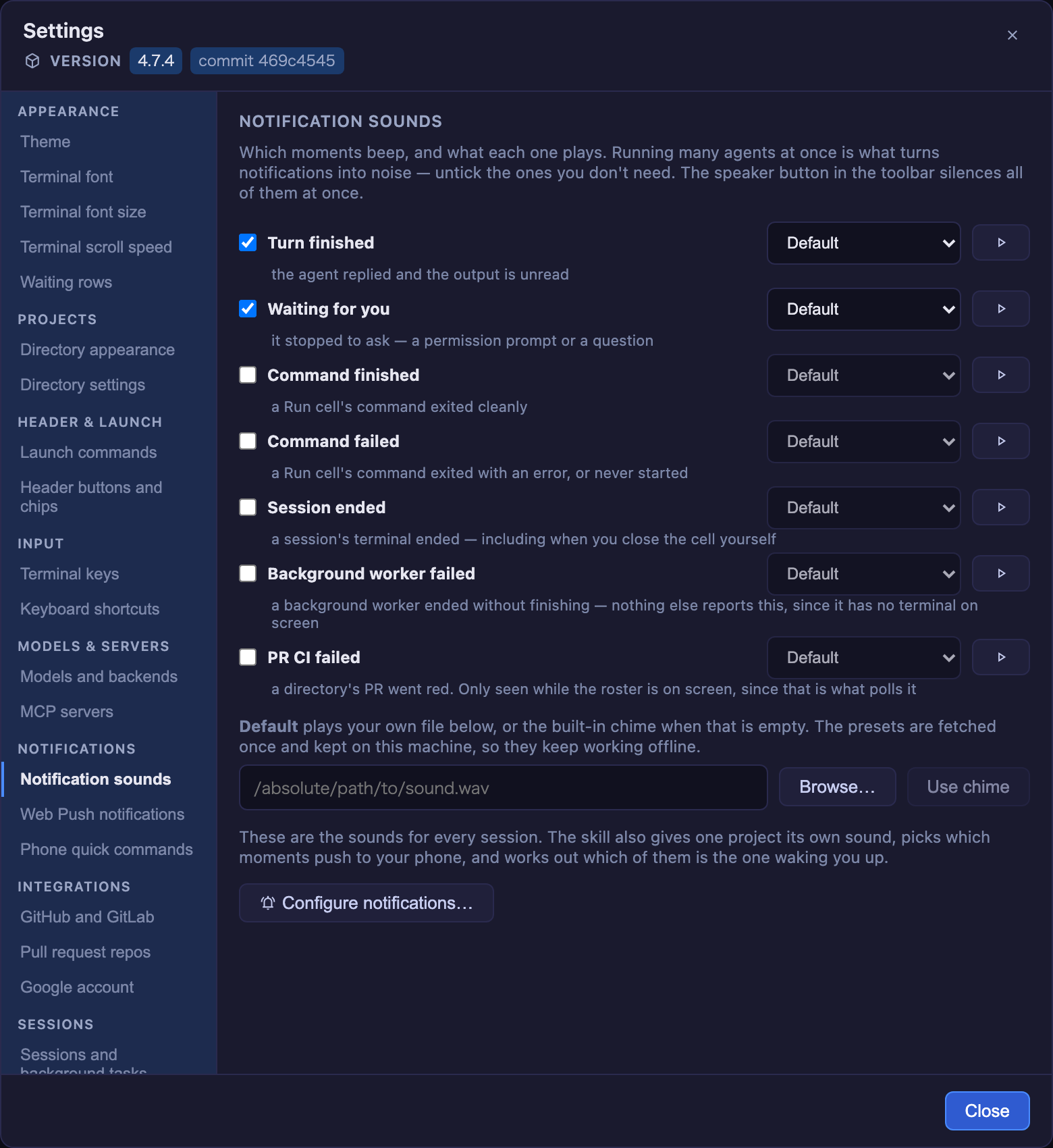
Where things live now:
| Group | Sections |
|---|---|
| Appearance | Language, Theme, Terminal font, Terminal font size, Terminal scroll speed, Waiting rows |
| Projects | Directory appearance, Directory settings |
| Header & launch | Launch commands, Header buttons and chips |
| Input | Terminal keys, Keyboard shortcuts, Voice input |
| Models & servers | Models and backends, MCP servers |
| Notifications | Notification sounds, Web Push notifications, Phone quick commands |
| Integrations | GitHub and GitLab, Pull request repos, Google account |
| Sessions | Sessions and background tasks, Sessions that survived a restart, Cost (estimated) |
| Help | Help & user guide |
Voice input only appears on a machine that can transcribe, so most setups see twenty-four of the twenty-five entries.
Three things worth knowing:
- From the keyboard, the whole sidebar is one Tab stop. Tab into it, then use the arrow keys to move between sections — they wrap at both ends. Twenty-four separate Tab stops would have been more keystrokes than the scroll this replaces.
- On a phone, the sidebar becomes a picker above the section rather than eating the width.
- A value you typed but have not applied survives a trip to another section and back. The terminal font field is the one that matters here — type a stack, go look at something else, come back, and it is still there.
→ Living reference: Settings modal — what you can change where
Settings in Japanese
The whole Settings modal is now available in English and 日本語.
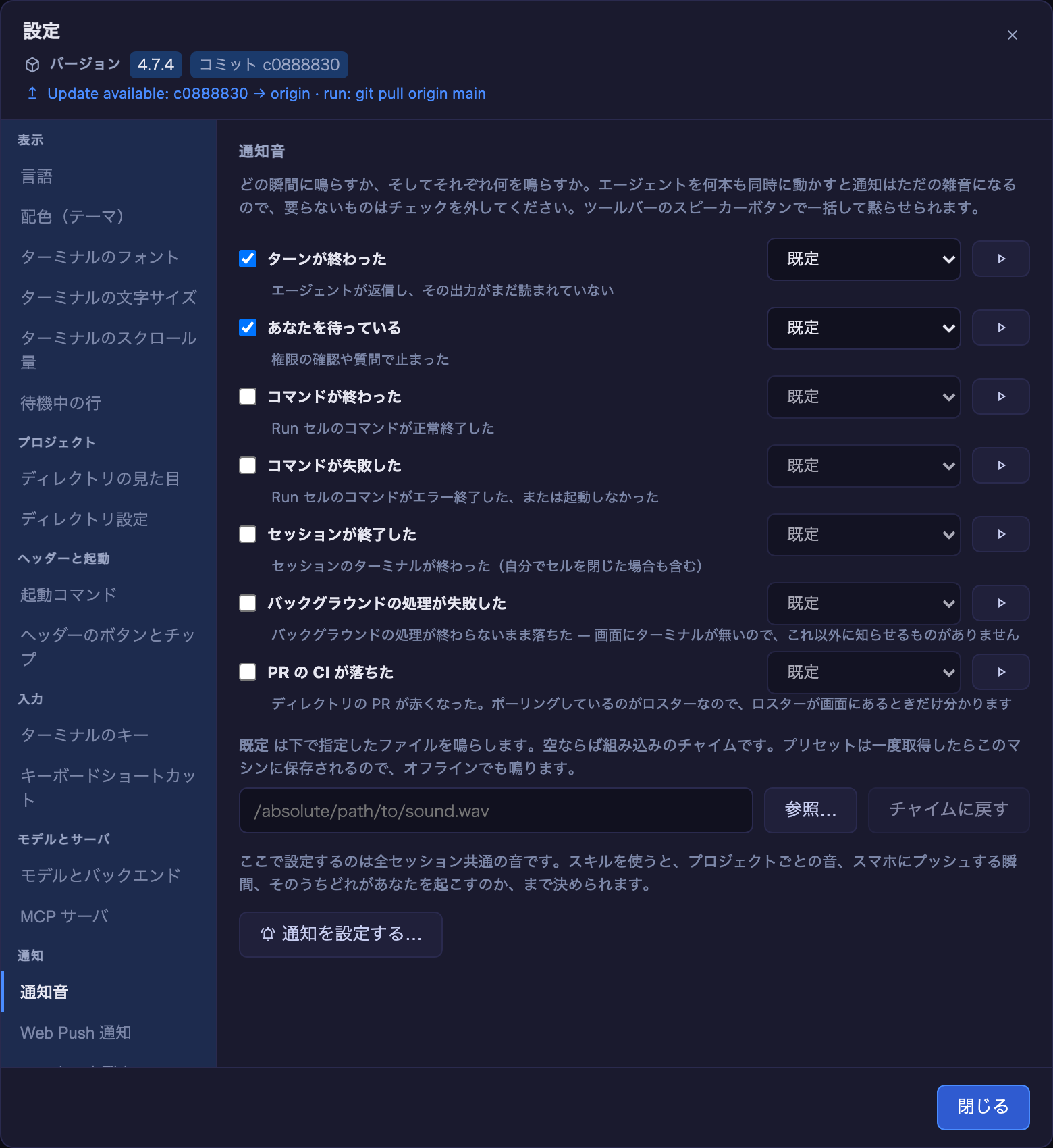
You probably do not have to do anything. The default is your browser’s language, so a browser asking for Japanese gets Japanese the first time you open Settings.
To choose explicitly:
- Open Settings (the gear in the toolbar).
- It is the first entry in the sidebar — Language under Appearance. It leads the whole list on purpose: if you cannot read the rest of the screen, this is the setting you need first.
- Pick My browser’s language, English, or 日本語. It applies immediately — no reload, no restart.
How to tell it worked: the sidebar itself changes with it. Notification sounds becomes 通知音, and the group headers become 表示 / 通知 / 入力.
Where it is stored: localStorage in that browser, like the theme and the terminal font size — not in ~/.mulmoterminal/config.json. A phone and a desktop pointed at the same server can each have their own language, and nothing you do here is shared with anyone else using that server.
Only the Settings modal is translated in 4.7.5. The toolbar, the cells and the overlays are still English, and the Language pane says so on screen so you are not left wondering. Other surfaces follow in later releases.
→ Living reference: Settings modal — what you can change where
A skill button asks before it starts
Some Settings sections hand over to an agent — Create a theme…, Configure notifications…, Set up shortcuts… and others. Pressing one starts a real agent session in a new grid cell.
Until now it did that the instant you pressed it, with Settings already closed behind you. In 4.7.5 it asks first:
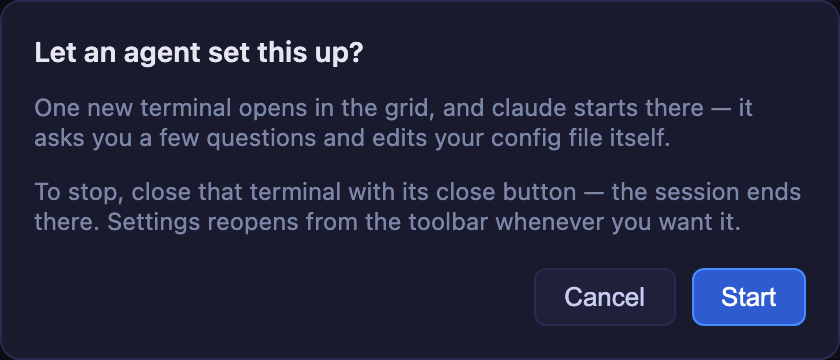
- The line under each button says an agent will do the writing, before you press anything.
- The dialog names the agent your launcher is set to —
claude,codex, whatever you last chose — because that is what will actually start. - Cancel leaves you exactly where you were, with Settings still open on the same section. Escape does the same; a second Escape closes Settings.
- Whichever way you decline, focus goes back to the button you pressed, so a keyboard user keeps their place.
- If you press Start and then change your mind, close that terminal with its close button — the session ends there. Settings reopens from the toolbar whenever you want it.
→ Living reference: Settings modal — what you can change where
Upgrading
npx mulmoterminal@latest
Nothing in ~/.mulmoterminal/config.json changes, and no existing setting moves or is renamed — only where it appears on screen. If a browser tab was open during the upgrade, reload it.