4.13.0 — Files beside the terminal, and a path you can insert
A snapshot as of 4.13.0 (released 2026-08-29). It will go stale as the app moves on — that is expected, and the living reference is the guide each section links to.
npx mulmoterminal@latest
Nothing here needs configuring. Every change below applies on its own; this page is about what moved and where to find it.
Files now open beside the terminal, not over it
Click the directory path in a terminal’s header and pick Browse files in the app. It used to replace the screen with the full Files view. It now opens the file pane next to the enlarged terminal — tree on the left of the pane, the file on the right, the terminal still visible and still running.
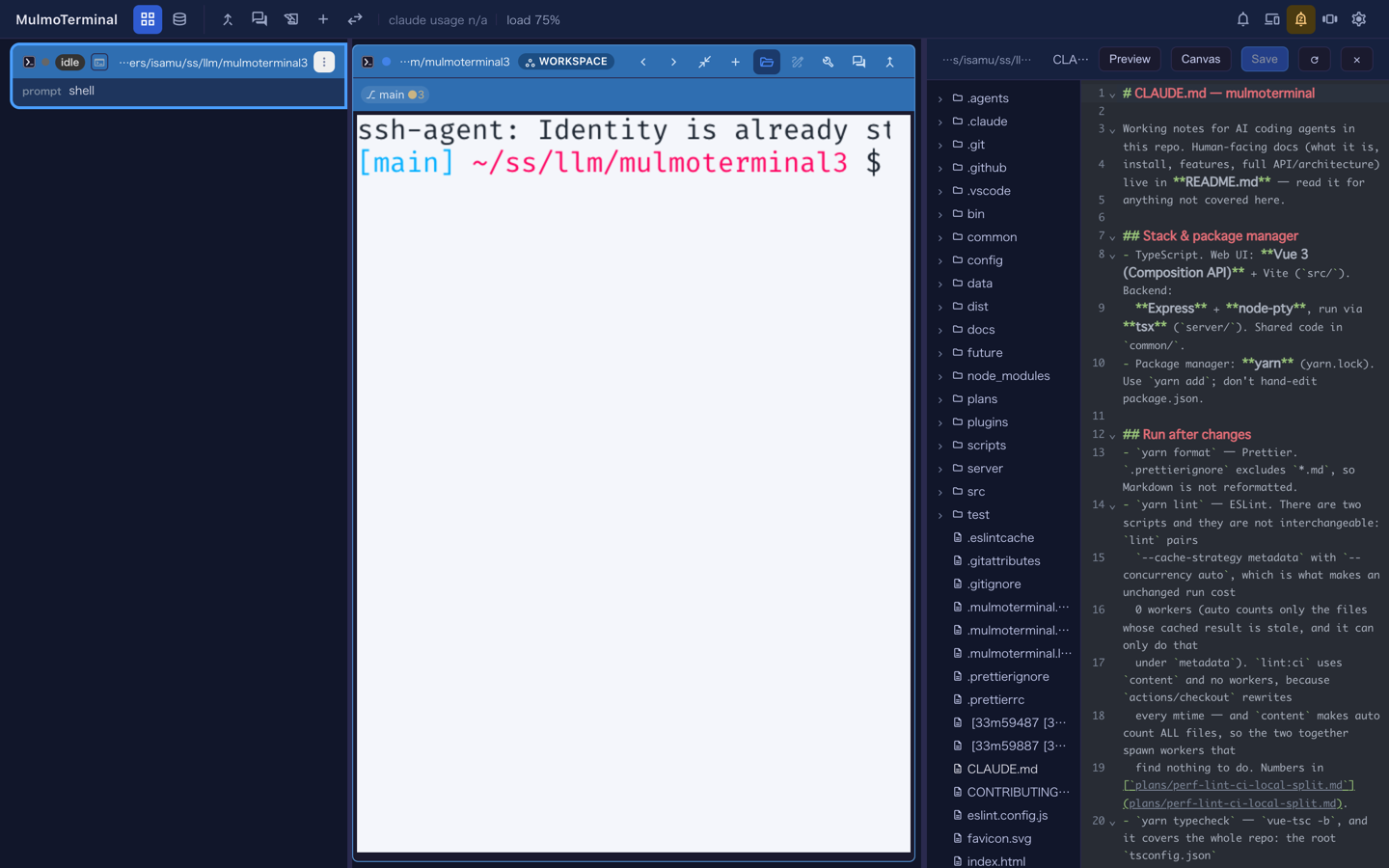
If the grid is tiled, the cell is enlarged first — one gesture instead of two.
The full-screen Files view has not gone anywhere. A header button you wrote yourself ("run": "open" with open.files) still opens it, deliberately: a button can be pointed at any path, while the pane can only be rooted at the enlarged terminal’s directory. Same setting, two destinations, and the difference is which one you came from.
The pane and the terminal are separated by a drag bar — see the fix note below if you have ever had one get stuck.
Right-click a file to put its path in the terminal
New in this release: right-click any row in the tree and the menu offers Insert relative path and Insert absolute path. The path lands at the terminal’s cursor, where you were already typing.
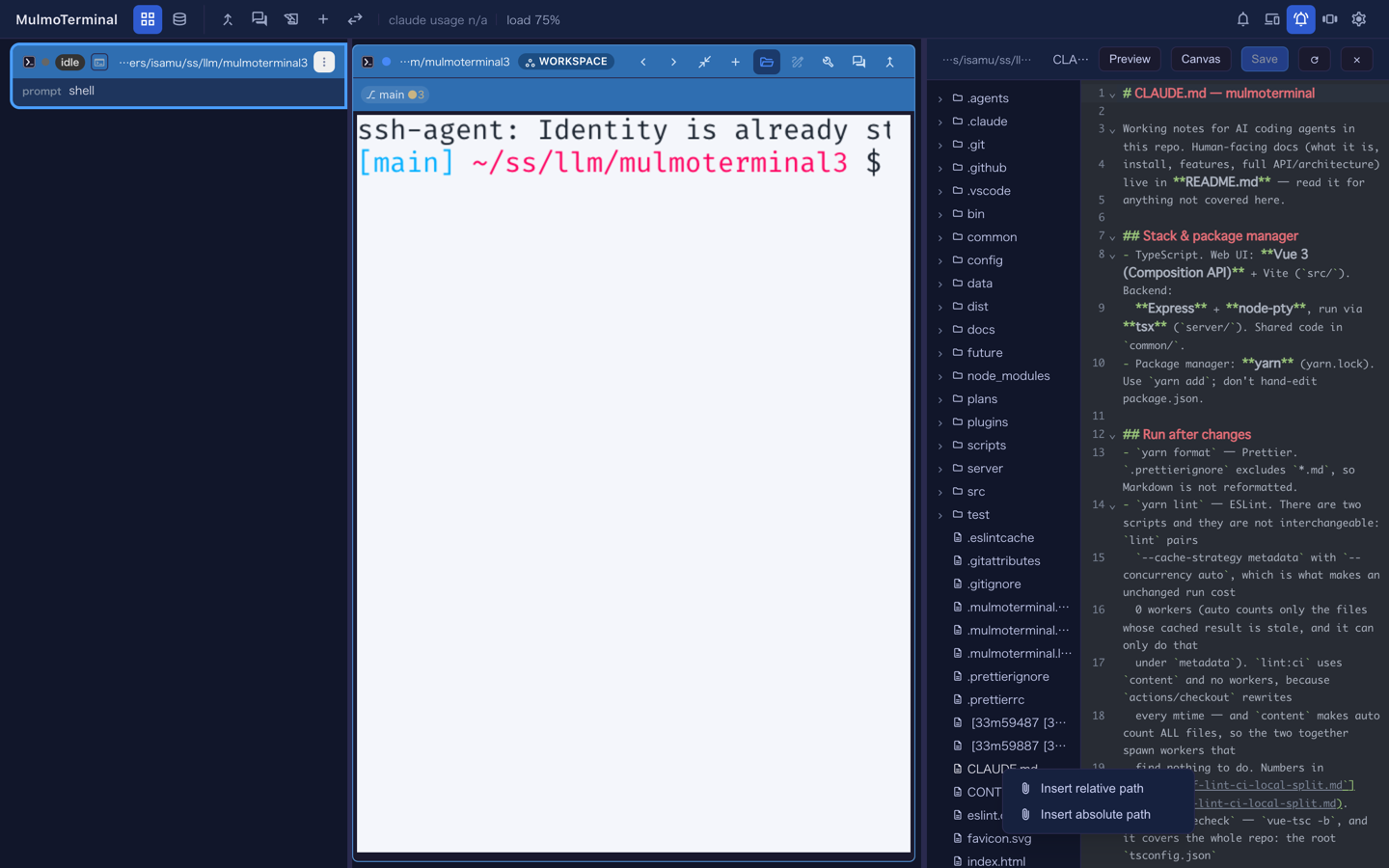
It is for the sentence you are already writing — read then right-click the file, rather than typing the path out or copying it from somewhere else. Relative is relative to that terminal’s directory.
Every keyboard shortcut, listed
Settings → Keyboard shortcuts now lists every action MulmoTerminal has, bound or not, so you can see what exists before deciding what to bind.
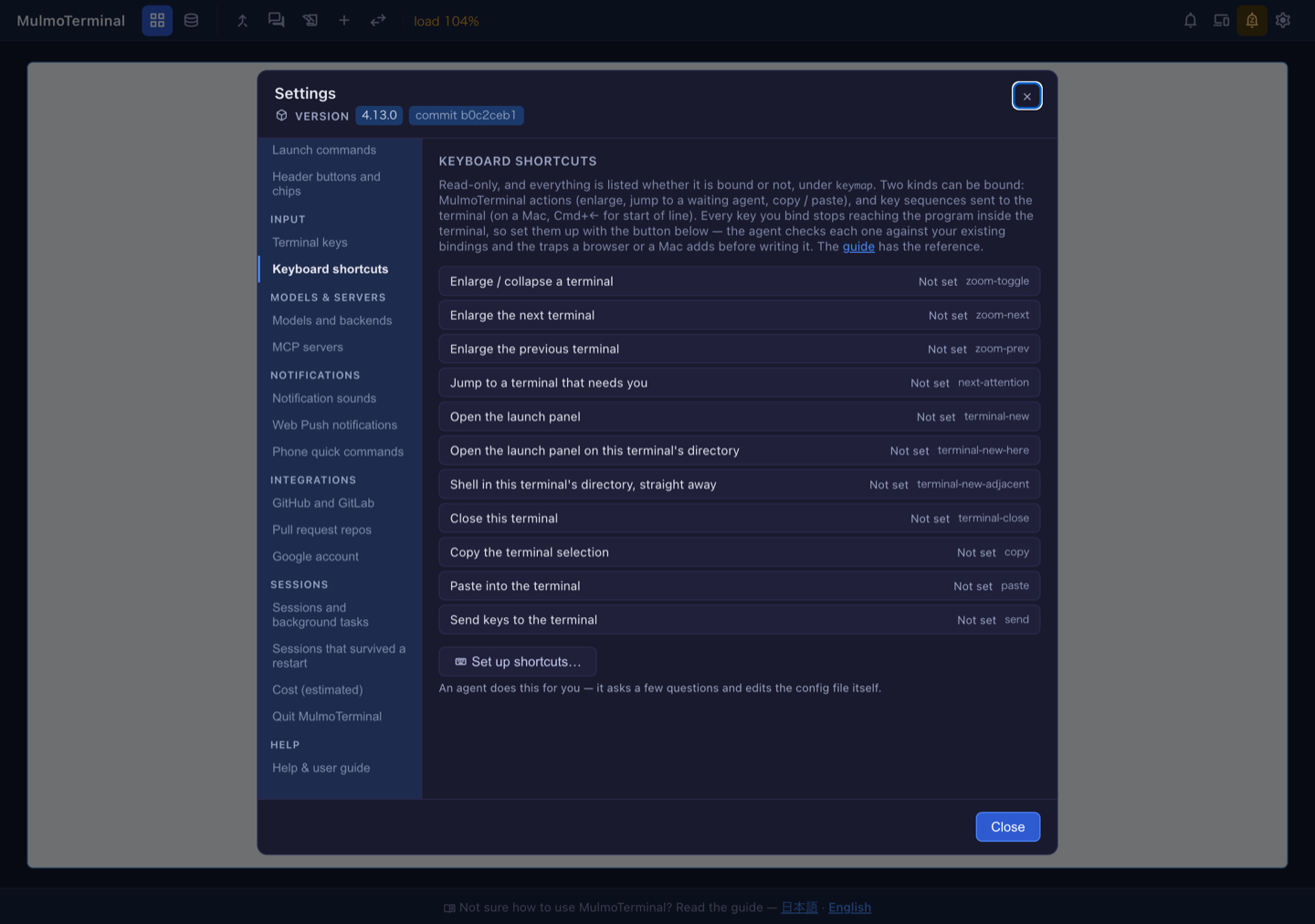
The list is read-only — this screen shows you what is there; it does not edit anything. The button at the bottom, Set up shortcuts…, hands the job to an agent that asks a few questions and writes ~/.mulmoterminal/config.json for you. That is not a slower way to do what the screen does: the agent checks each key against your existing bindings and against the traps a browser or a Mac adds, which is where hand-written keymaps usually go wrong.
Two kinds can be bound: MulmoTerminal’s own actions (enlarge, jump to a waiting agent, copy/paste) and key sequences sent to the terminal — on a Mac, Cmd+← for start of line. Every key you bind stops reaching the program inside the terminal, so that is the trade to think about.
The reference is Keyboard shortcuts (keymap), and the send form is Sending keys to the terminal (send).
Fixes worth knowing you have
A splitter drag no longer gets stuck on a preview
Dragging the bar between the terminal and a pane used to stop following the pointer the moment the cursor crossed onto an embedded preview, and releasing the button did not end the drag — moving the mouse afterwards kept resizing with nothing held down.
How to tell you have the fix: enlarge a terminal, open a pane with a preview in it, then drag the bar quickly to the right, past the preview, and let go over it. Before, the width froze and then followed your mouse around afterwards. Now it tracks the whole way and stops when you release.
localhost means one thing again
The server now serves ::1 as well as 127.0.0.1, so the address the launcher prints is the address your browser reaches — on a machine where localhost resolves to IPv6 first, those had drifted apart.
How to tell you have the fix: the ready banner names a port, and opening it works without editing the URL by hand.
Smaller ones
- The copy button on a code block in a rendered document works again — it was losing the class it is styled with when the component had a fragment root.
- The startup collision warning now names the right winner when
copyand asendbinding share a keystroke:copyonly acts while text is selected, so the other one fires when nothing is. - Writing header buttons or chips through the config API replaces the whole array — the skill that writes them now says so, instead of silently dropping the ones you already had.
Where the reference lives
This page is a snapshot; the guide is the part that stays current. Keyboard shortcuts · Sending keys to the terminal · Answering from a side pane · Every key in the config file